Party ID
Dashboard > Parties > Party ID hyperlink
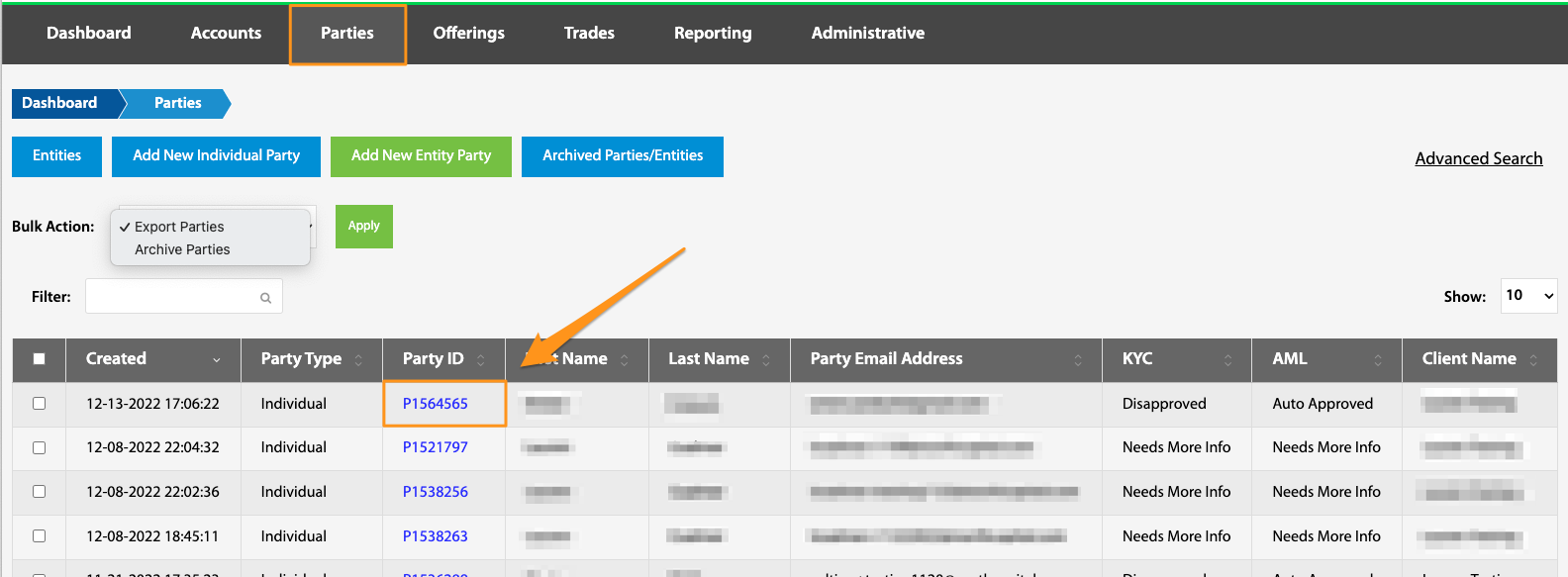
By selecting a specific Party ID number from the Parties View, many details and action buttons become available.
Individual Information Tab
Dashboard > Parties > Party ID hyperlink > Individual Information tab
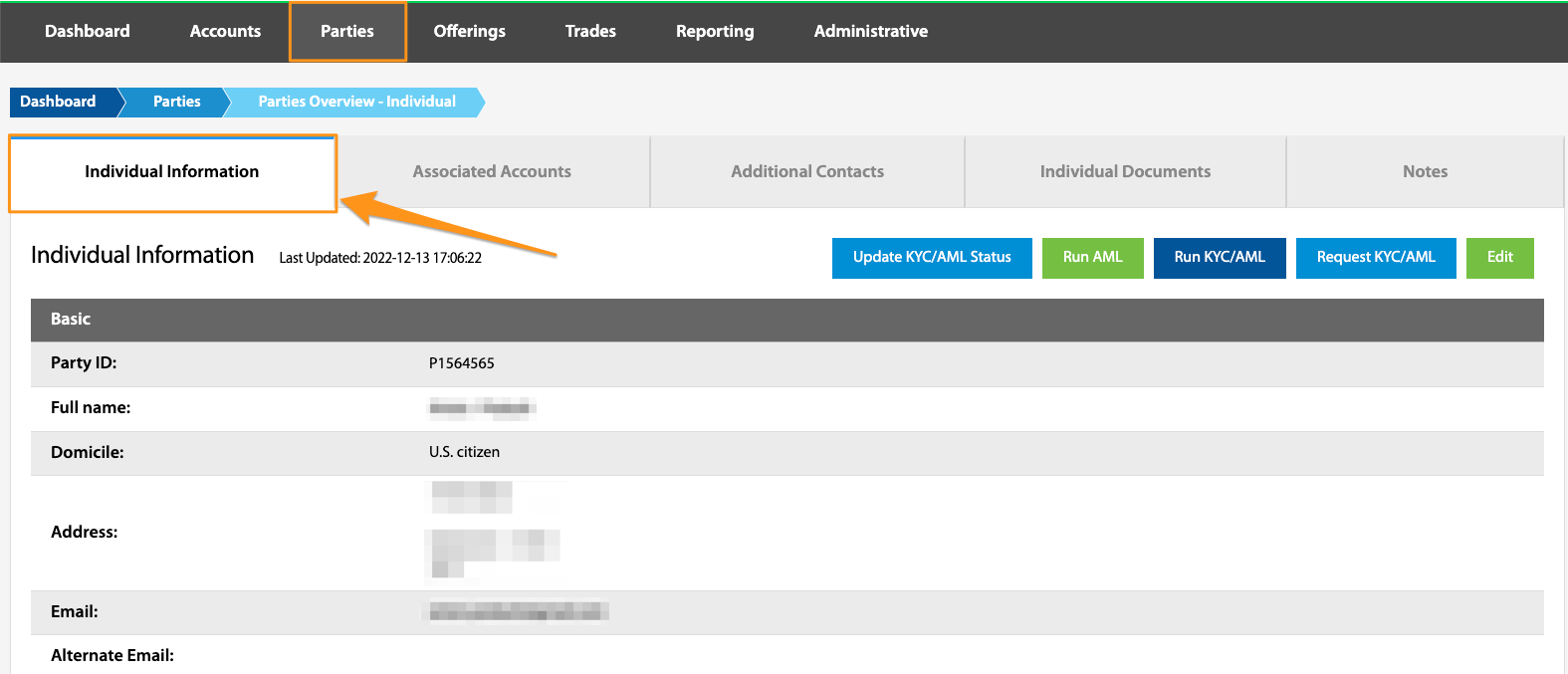
All data that is linked to a party can be found here. This includes basic information such as name and address, employer information, financial information, and administrative information like KYC/AML status. See KYC/AML General Information.
Update KYC/AML Status
Dashboard > Parties > Party ID hyperlink > Individual Information tab > Update KYC/AML Status
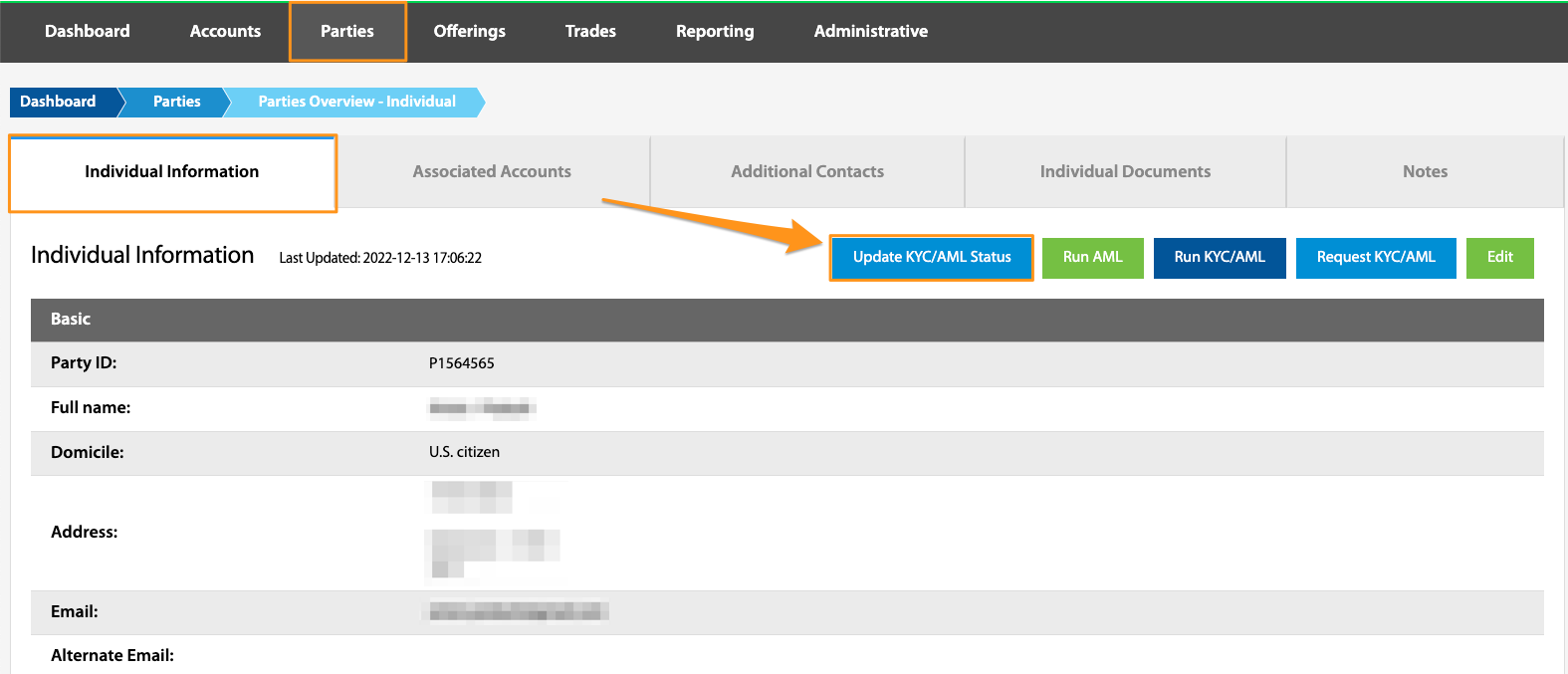
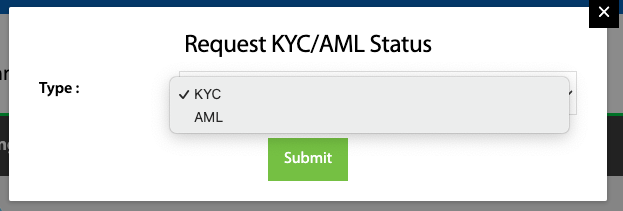
When an investor does not pass the auto KYC/AML verification, more information may be needed for a manual verification. Once necessary identification documents are uploaded to the Party's Individual Documents depository, selecting the Update KYC/AML Status button will update the status to "More Info Added", triggering North Capital's team to re-review the data. This button is used in conjunction with the requestKycAml API method.
North Capital's manual review is billed per party. See the Fee Schedule.
See KYC/AML General Information.
Run AML
Dashboard > Parties > Party ID hyperlink > Individual Information tab > Run AML
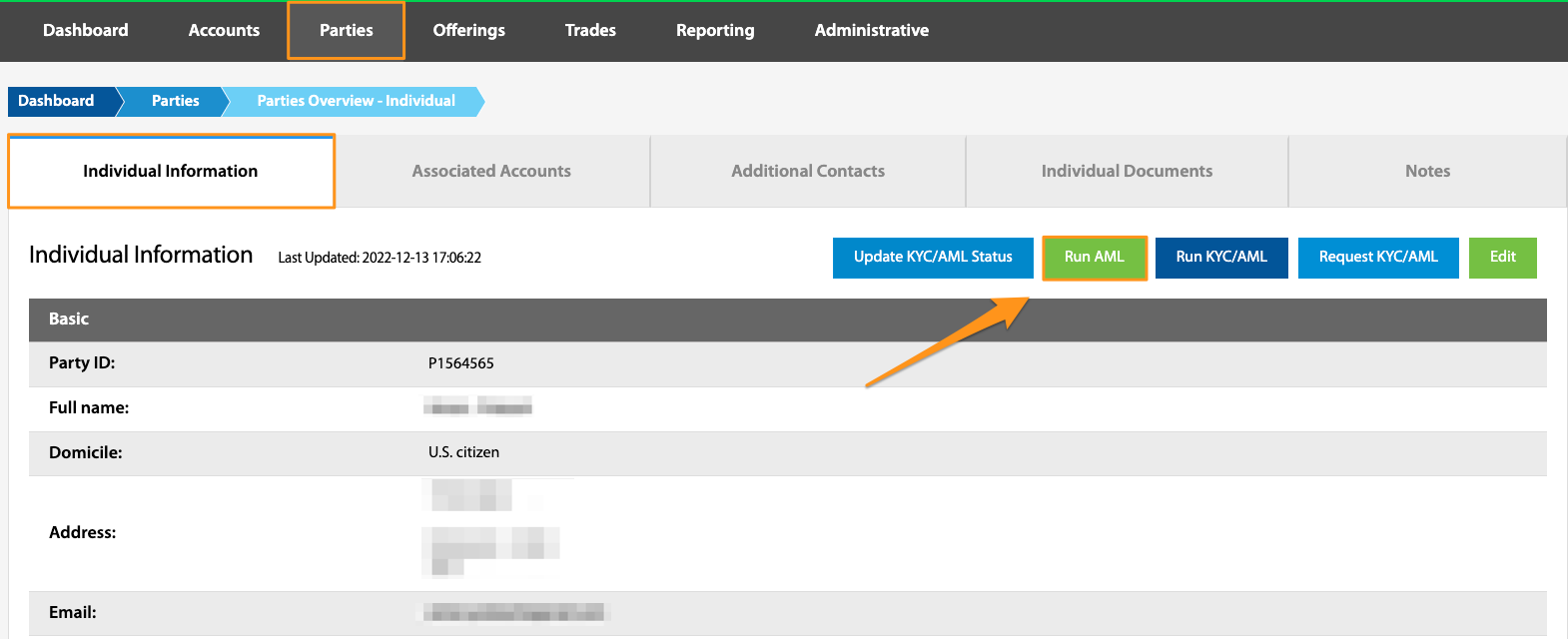
Requesting this check will trigger North Capital’s system to run an automated verification against global watch lists. This AML check is required to be performed on entities if North Capital is acting as an escrow agent for the offering. This is a process that can be utilized for entities as KYC verification is not normally run on entities. Please note that all entity documentation needs to be collected before requesting this verification.
Run KYC/AML
Dashboard > Parties > Parties ID hyperlink > Individual Information tab > Run KYC/AML
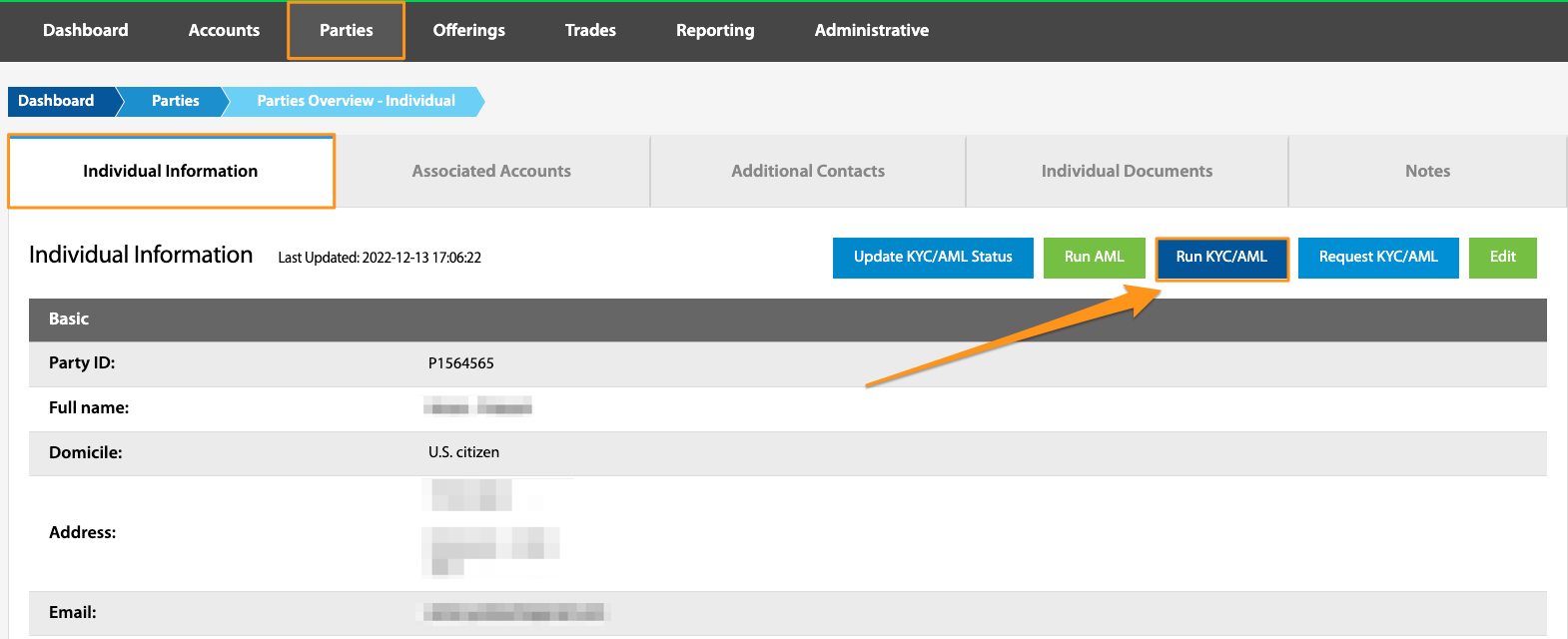
Requesting this check will trigger North Capital’s system to run an automatic KYC/AML verification check. This is an appropriate action for individual and joint parties. This is commonly used if the performKycAml API method is not being utilized through the investment portal, or if it needs to be run again.
Technology fees apply when you run KYC/AML from this button. See the Fee Schedule.
Request KYC/AML
Dashboard > Parties > Parties ID hyperlink > Individual Information tab > Request KYC/AML
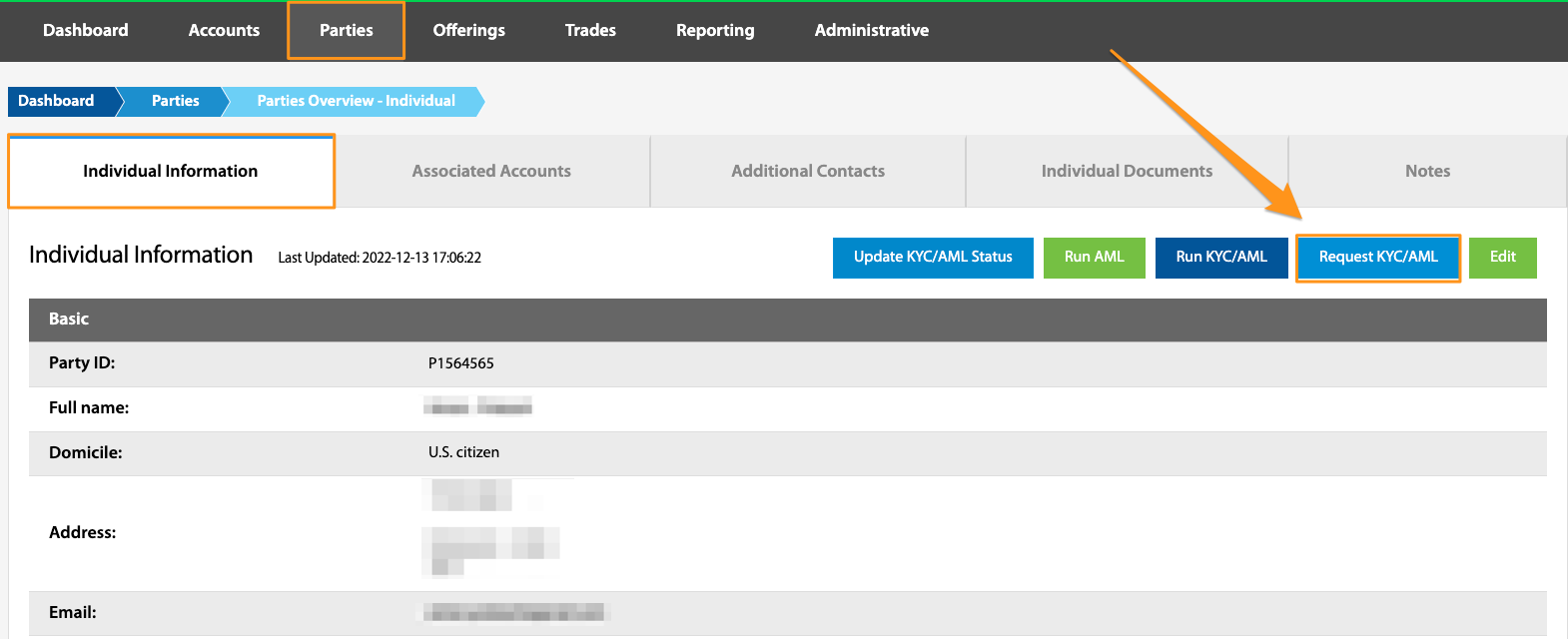
If a party fails the auto KYC or AML verification, the situation can be handled in 2 ways. First, the investment portal's team can manually verify if the failed investor is or is not the individual on the watchlist(s) that triggered the failure (for AML), or verify identity by collecting a photo ID (for KYC), or North Capital can manually review these data points for a fee. See the Fee Schedule.
Requesting KYC/AML is different from running KYC/AML (see above) in that requesting this will trigger a manual verification process through North Capital. This request happens upon auto KYC/AML failure. Requesting a manual verification is always a manual process that needs to be initiated from the TransactAPI dashboard. This request can only be selected once and for an initial check. If the initial verification does not pass and additional documents need to be uploaded, the Update KYC/AML Status button will need to be selected to trigger North Capital to re-review.
Edit
Dashboard > Parties > Party ID hyperlink > Individual Information tab > Edit
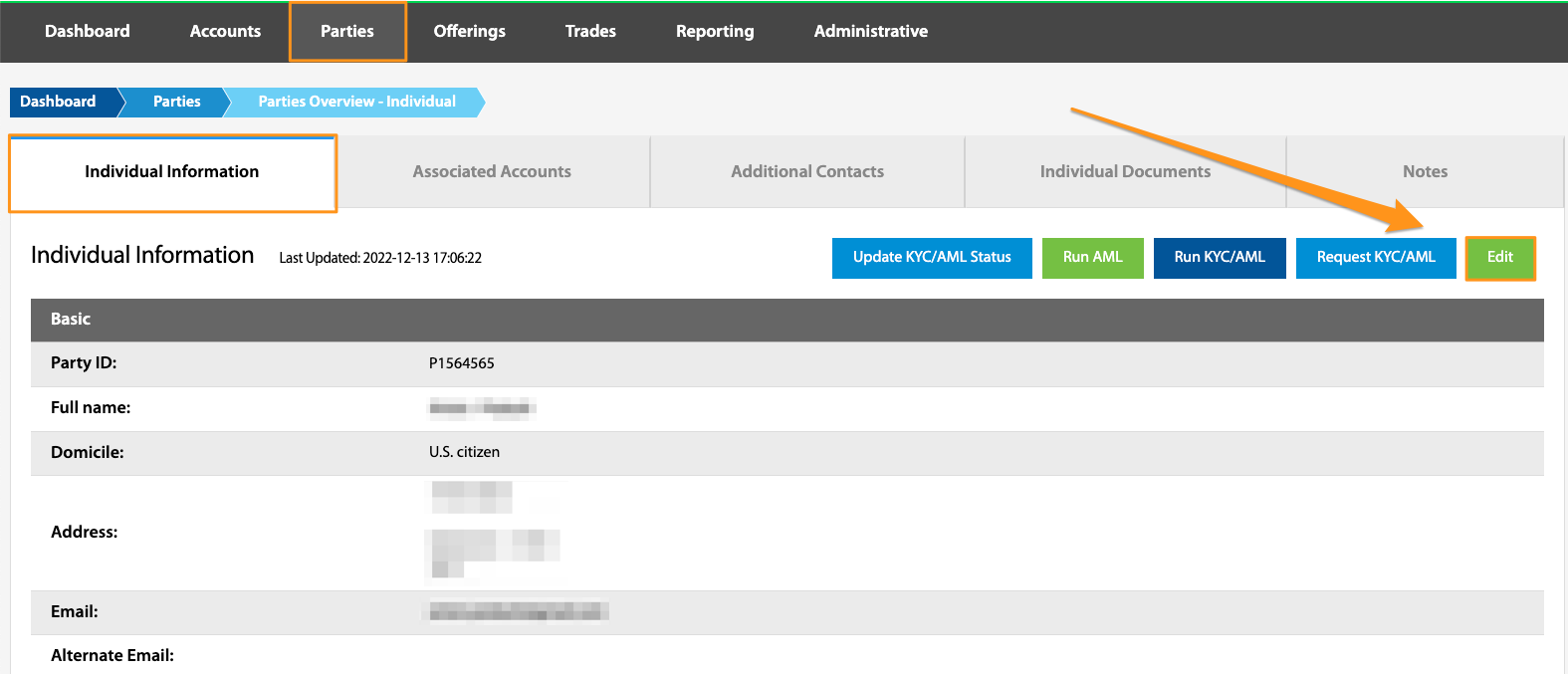
This allows for edits to a party’s information. This may be used to add a mailing address, update contact, employer, or income information.
Add Mailing Address
Dashboard > Parties > Party ID hyperlink > Individual Information tab > Add Mailing Address

Due to FINRA regulations, all parties must utilize their physical address for investment purposes. A mailing address can be added to this container for storage.
Associated Accounts Tab
Dashboard > Parties > Party ID hyperlink > Associated Accounts tab
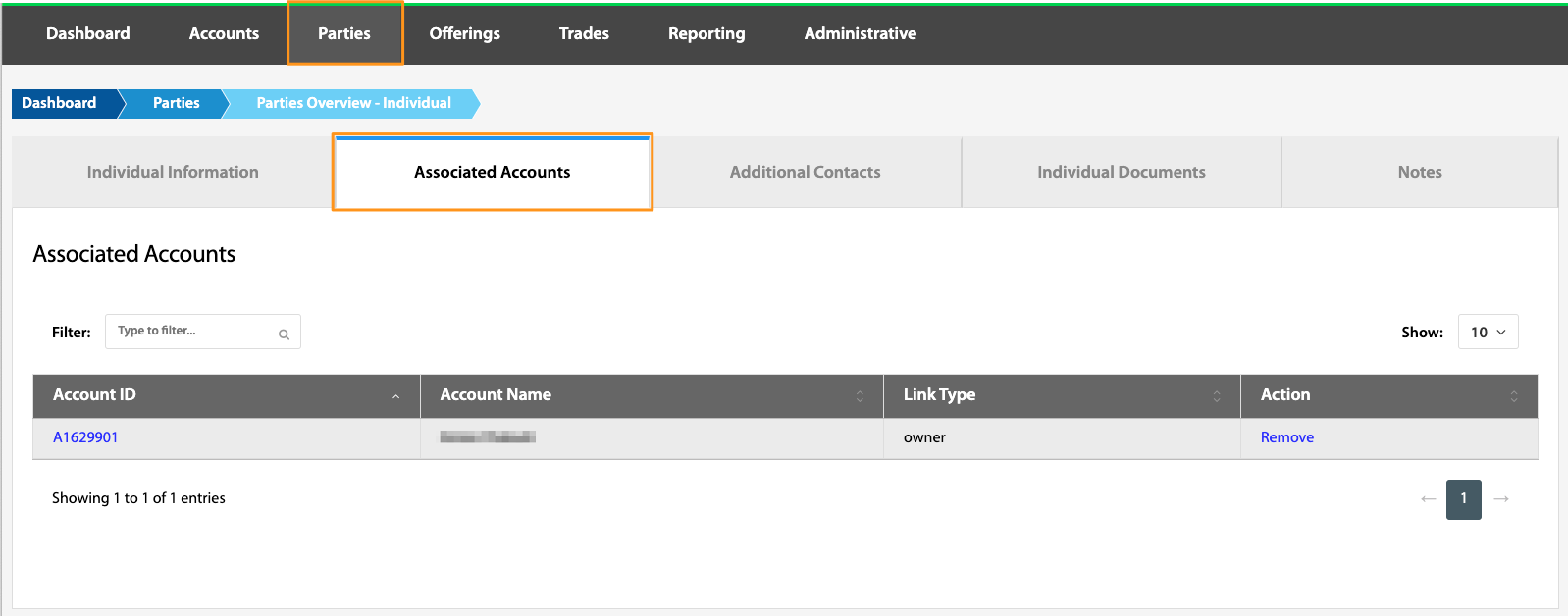
Under this tab, all accounts associated with the party are listed. From this screen the account can be unlinked or, by selecting the Account ID hyperlink, the admin user can navigate to the Accounts view of the TransactAPI admin dashboard. An association between a Party and an Account is made at the account level by selecting the desired Account ID, navigating to the Associated Parties tab, selecting Add Associated Party, and finally entering the Party ID and selecting whether the party is the primary party or not.
Additional Contacts Tab
Dashboard > Parties > Party ID hyperlink > Additional Contacts tab
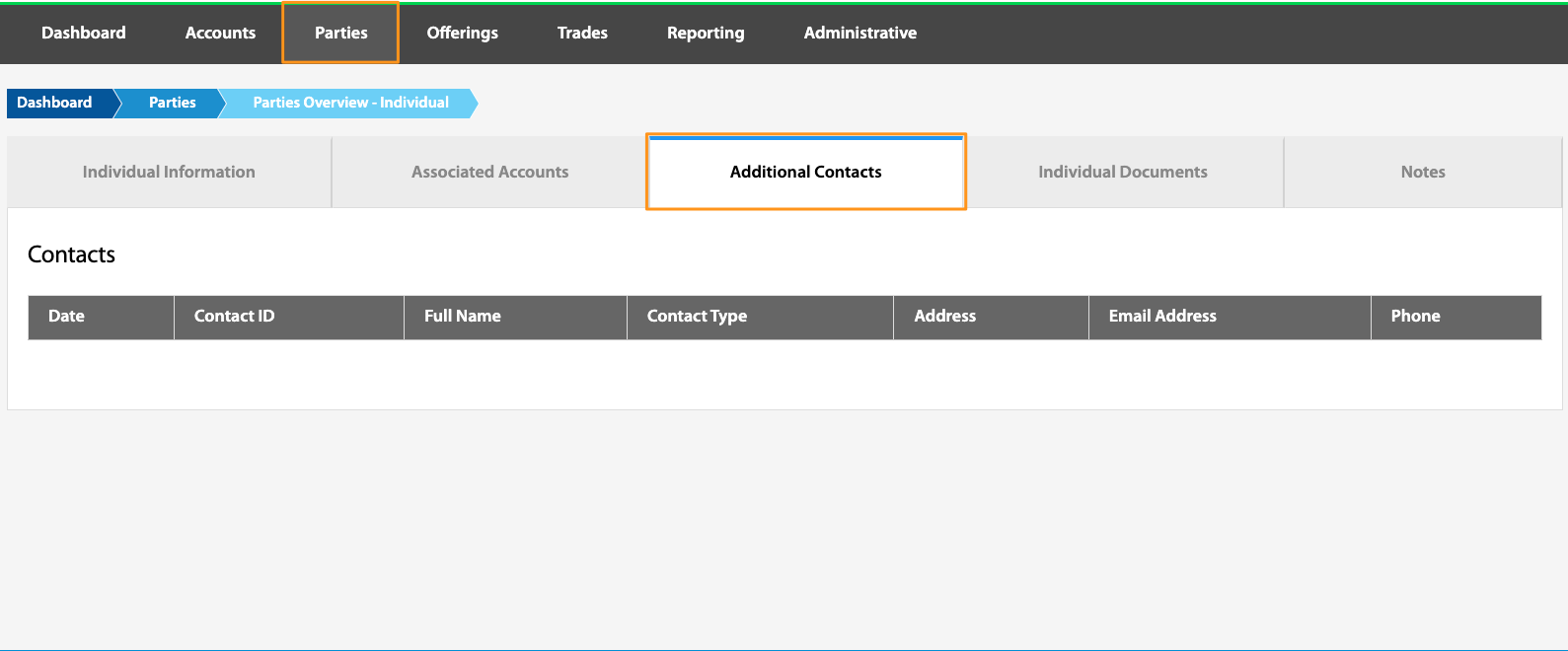
This tab is a placeholder for future functionality.
Individual Contacts Tab
Dashboard > Parties > Party ID hyperlink > Individual Contacts tab
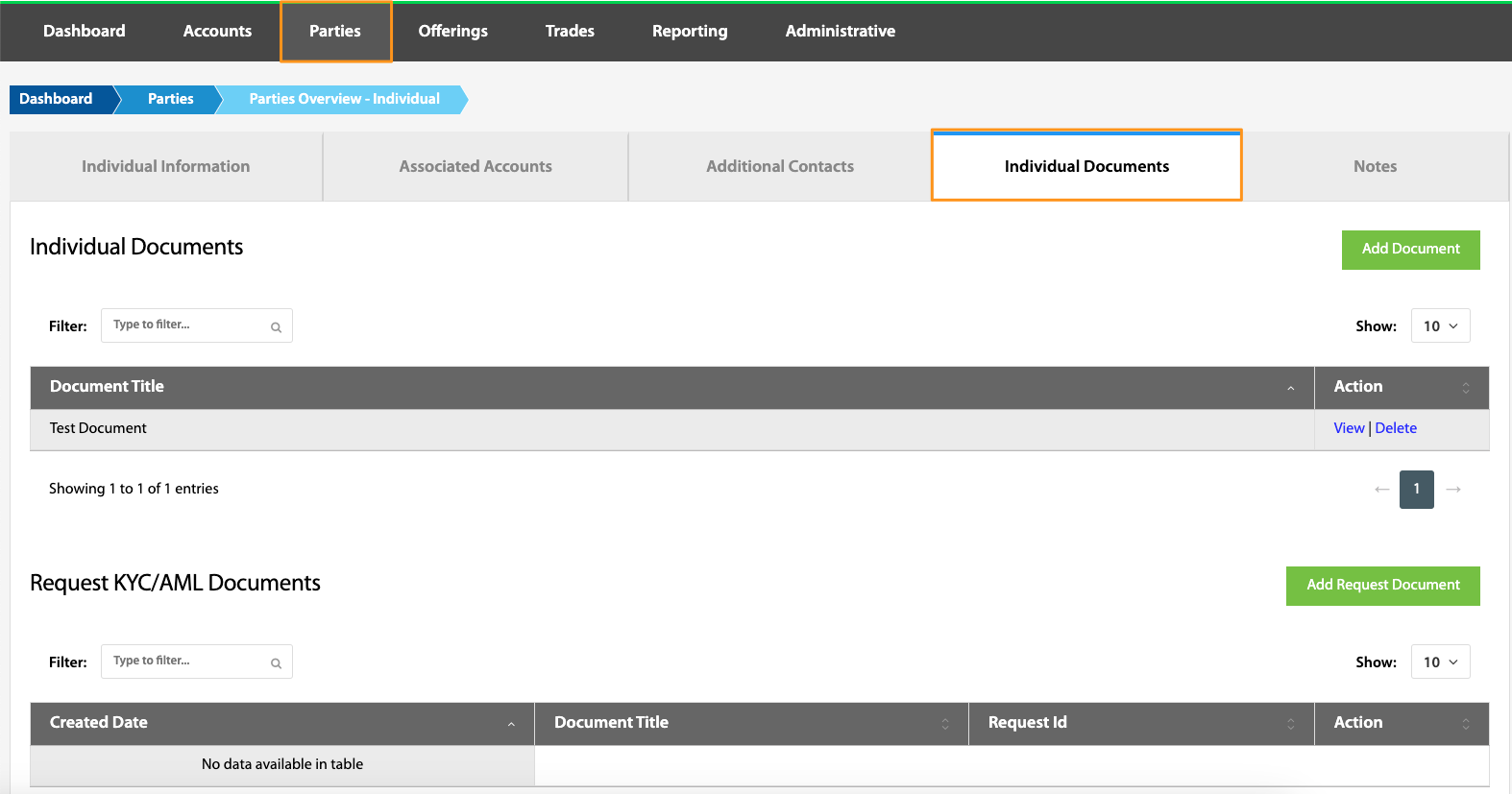
All uploaded documents associated with the party are located under this tab. This includes documents related to KYC/AML verification. Documents can be manually added using the Add Document button. Documents can also be viewed and deleted from this page.
Notes Tab
Dashboard > Parties > Party ID hyperlink > Notes tab
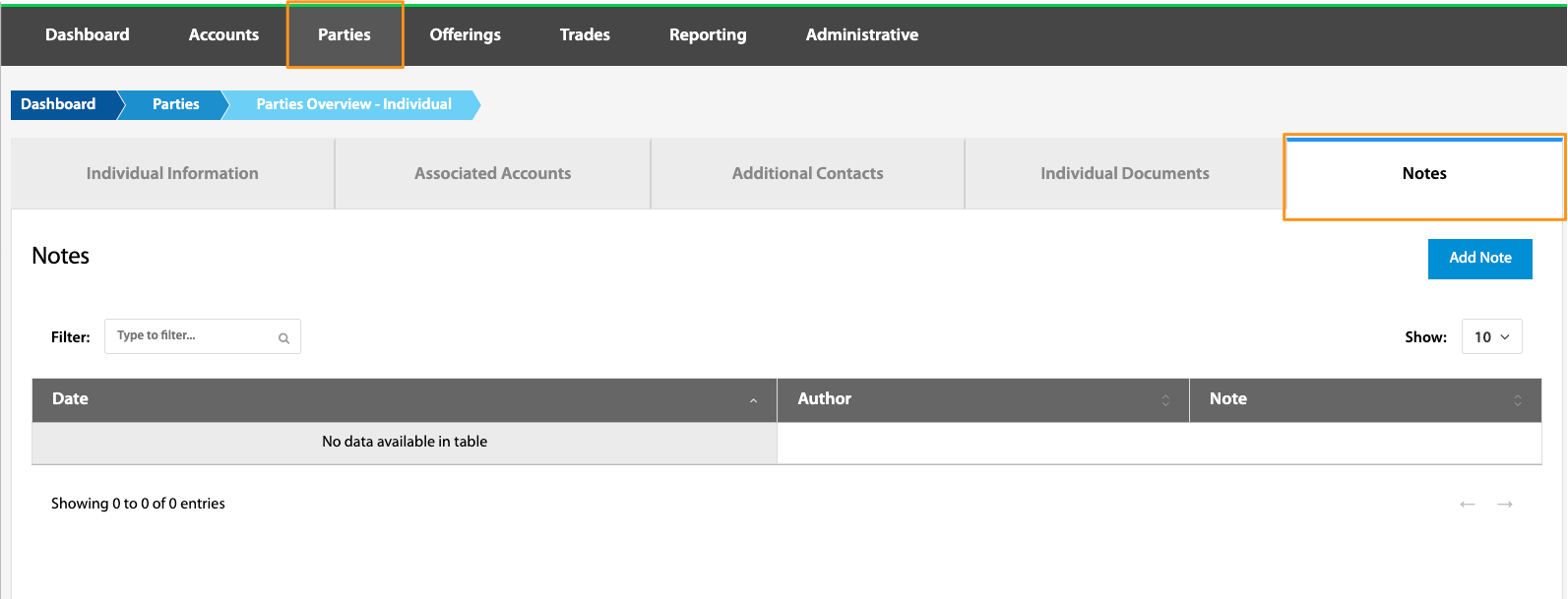
Any pertinent notes can be added to this tab for storage purposes. There is no active functionality to this section.